
Client Maintenance
Overview
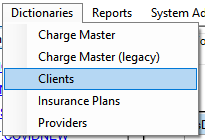
To launch client maintenance, select the Dictionaries menu, then select Clients.
The Clients tab will show a list of clients. By default, only active clients are shown. To view inactive/deleted clients, click the "Include Deleted" checkbox.
Enter search text in the Filter box to show clients that match that text. The client mnemonic can also be entered to show just that client.
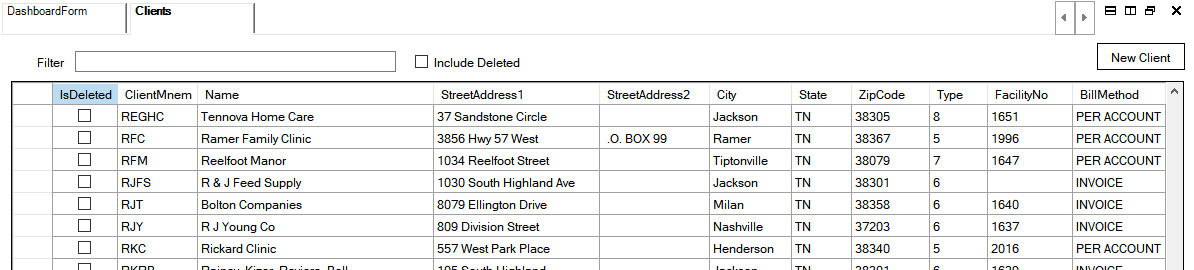
Double-click a client to modify the client record.
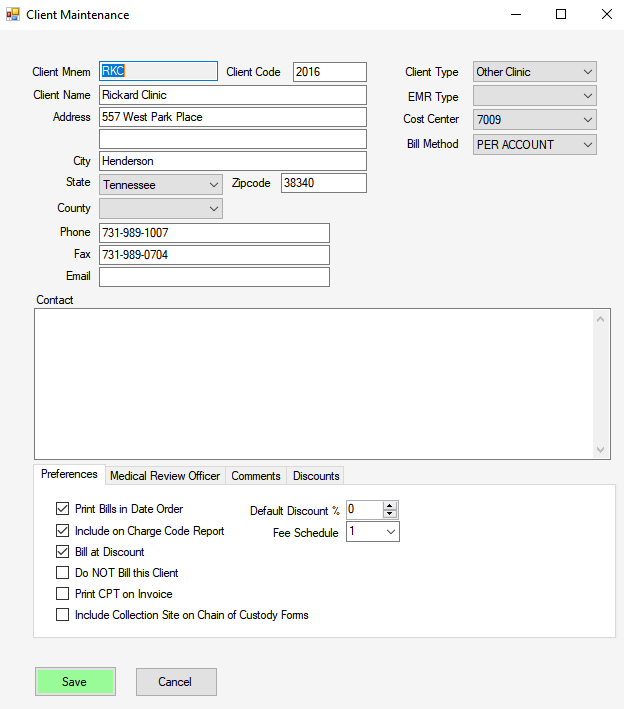
The Client Maintenance dialog will show all details for the client and allow modifying the information.
Main Section
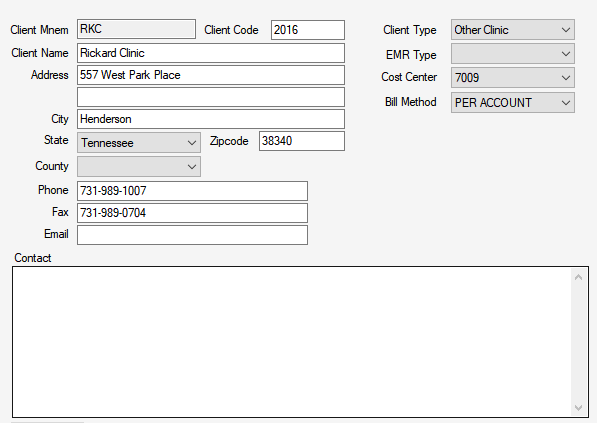
Client Mnem - A short alphanumeric identifier. This value must be unique.
Client Name - Full name of the client. This will show on reports and invoices.
Address - Primary mailing address for client.
Phone - Primary contact phone number.
Fax - Number where client wants reports or invoices faxed.
Contact - Enter contact information for this client, such as specific persons and contact method.
Client Type - Select the category that describes this client.
| Type No | Description | Notes |
|---|---|---|
| 0 | Affiliate | Used for WTH hospitals, will not drop and invoice. All charges will be zero amount. |
| 1 | Alliance Hospital | |
| 2 | Other Hospital | |
| 3 | Affiliate Clinic | |
| 4 | Owned Clinic Lab | |
| 5 | Other Clinic | |
| 6 | Industry | Used for employer's doing employment drug screens. |
| 7 | Nursing Homes | |
| 8 | Home Health | |
| 9 | Other Lab | |
| 10 | Veterinary Clinic |
EMR Type - Obsolete
Cost Center - Select the cost center where revenue from this client will be charged.
Bill Method- Determines how the charge processing interface will create accounts for this client.
- INVOICE - accounts will always be created with a Y financial code.
- PATIENT - accounts will always be created with a patient bill type financial code, depending on the insurance on the account. If the financial class cannot be determined, it will be setup as self-pay or financial class K for unknown.
- PER ACCOUNT - accounts will be created based on the financial class specified in the interface message. This is the default for new clients.
Note: This only affects how charges are initially posted by the interface. Individual accounts can be changed after charges are posted.
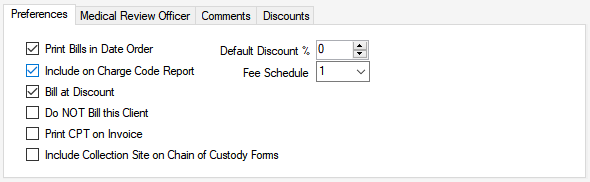
Preferences Tab
- Print Bills in Date Order - If checked, item details will be sorted in date order on the invoices. If unchecked, details are sorted in patient name order.
- Include on Charge Code Report - Legacy item. May no longer be used.
- Bill at Discount - Determines how discounts are shown on the invoice. If checked, individual lines will reflect the discounted prices. If unchecked, individual lines will reflect the client list price and show a total discount amount at the bottom of the invoice.
- Do NOT Bill this Client - If this is checked, the client will not receive an invoice. If there are any accounts for the client that are flagged to be invoice, these will show as an error during the client invoice process.
- Print CPT on Invoice - If this is checked, cpt codes will be printed along with the item description on the invoice. If unchecked, only the item description will print.
- Include Collection Site on Chain of Custody Forms -
- Default Discount % - Sets an overall discount percentage that will be applied to all invoiced charges. The default discount can be overridden per CDM in the discounts tab.
- Fee Schedule - Select which fee schedule is used for charging this client.
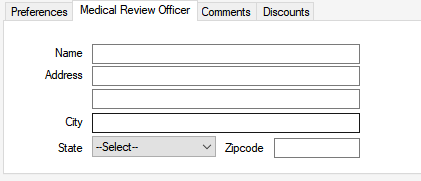
Medical Review Officer Tab
Enter the medical review officer assigned to this client. This is used for industrial drug screen clients.
Comments Tab
Use this section to record any internal notes about this client. Clients will not see this information.
Discounts Tab
Enter discounts per CDM.
Cdm - enter the cdm or start a description search. A cdm search box will appear to complete the search. Cdm Description - will show the description of the Cdm.
Percent Discount / Price - For the discount calculation, enter either a percentage discount or a discounted price. The remaining field will be calculated based on the value entered.
	Percent Discount - enter the discount percentage desired for this cdm. The Price will be calculated based on the discount percentage.
	 - Or -
	Price - enter the discounted price. The PercentDiscount will be calculated based on the price entered.