
ClientInvoicing
Overview
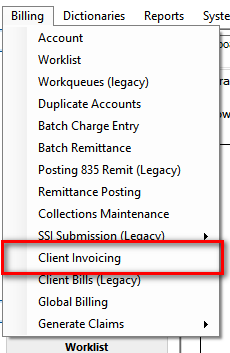
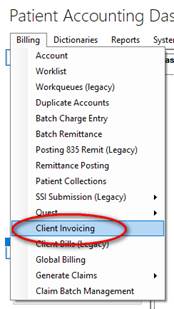
Access the Client Invoicing Routine from the Billing Menu.
The generate invoices tab is where new invoices are reviewed and generated. Clients that have accounts qualifying for an invoice are shown here.
Select a client to view the accounts/charges that will be listed on a new invoice in the lower pane.
Double-click an account line in the lower pane to open that account.

After changes to an account/accounts is made, click the refresh arrows in the upper selection area to update the list of clients awaiting invoices.

The selection options at the top of the client invoicing tab determine what accounts are shown in the list.

Generating Invoices
Invoices can be generated per client, or in a batch. To select a client to invoice, check the checkbox next to the client in the list.

Multiple clients can be checked.
Selection Profile
The selection profile dropdown will check clients based on client type.
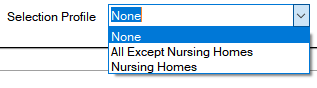
- None - will deselect all clients in the list.
- All Except Nursing Homes - will select all clients in the list except for clients marked as Nursing Home (type 7).
- Nursing Homes - will select all clients marked as Nursing Home (type 7).
When the clients to receive an invoice have been selected, click the Generate Invoices button. The selected (checked) clients will have a new invoice generated. Note, the invoices will generate, but not print. See the "Printing Invoices" section on how to print invoices.
Printing Invoices
Printing is done from the Invoice History tab.
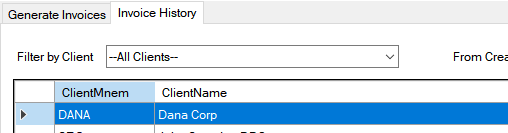
The invoice history tab is used to lookup a history of invoices. Invoices can be shown by date range and by client.
The date range selection is default to the past 30 days, show the most recent invoices created. Change the dates to see invoices created for a specific date range. If you print all now, you will just get the invoices/statements for the clients that ran for that time period.
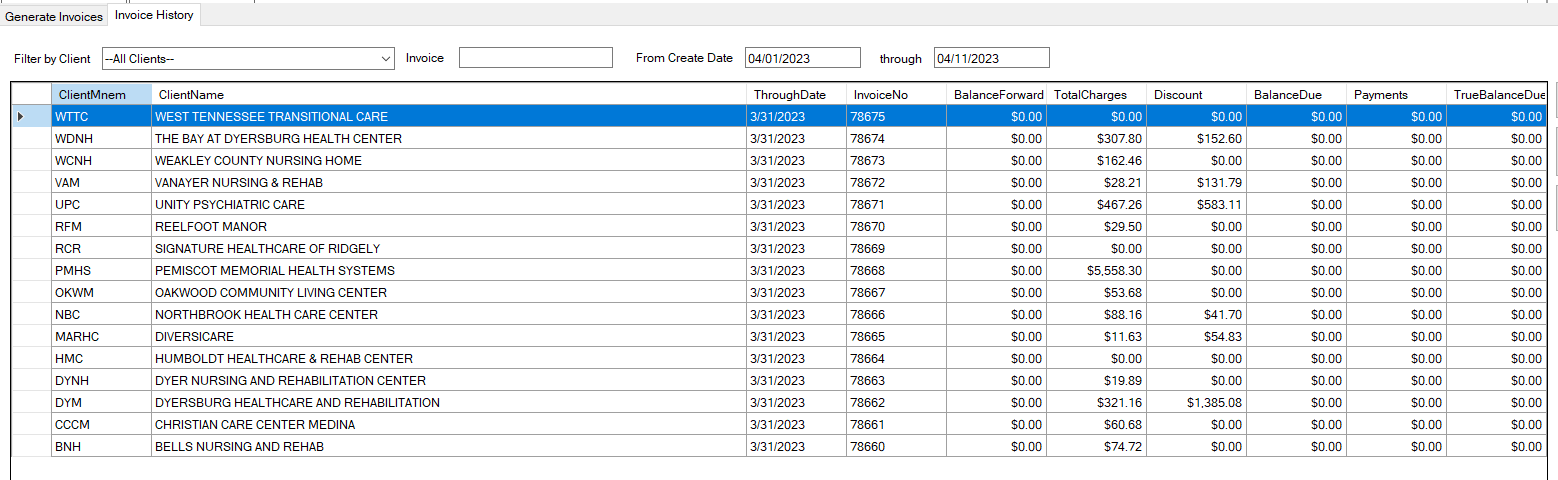
Invoices can be printed individually or as a group. To print a single invoice, select it in the list, then click the Print Selected Invoices button.
To print multiple invoices, hold the ctrl key while selecting invoices in the list. The invoices selected will be highlighted in blue.
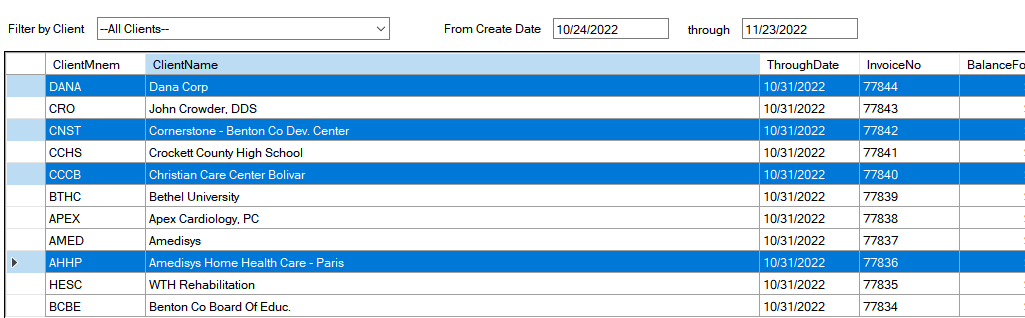
When the desired invoices are highlighted, click the Print Selected Invoices button.
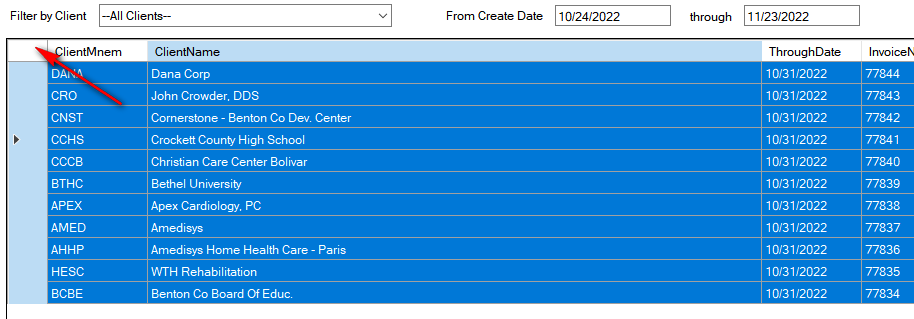
To print all invoices in the list, select one client in the list, then press ctrl+A on the keyboard, or click the box in the upp left corner of the grid. This will select all clients in the list. Click the Print Selected Invoices button to print the selected invoices.
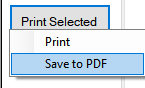
When the Print Selected Invoices button is clicked, you have the option to print them to a printer, or save to a PDF file.
Generating a Client Statement
A statement shows a summary of invoices billed to a client and payments and adjustments to the client account. A statement is generated with every new invoice created. Statements can also be run on demand and allows for showing longer history as needed.
To generate a statement on demand:
Under the client account:
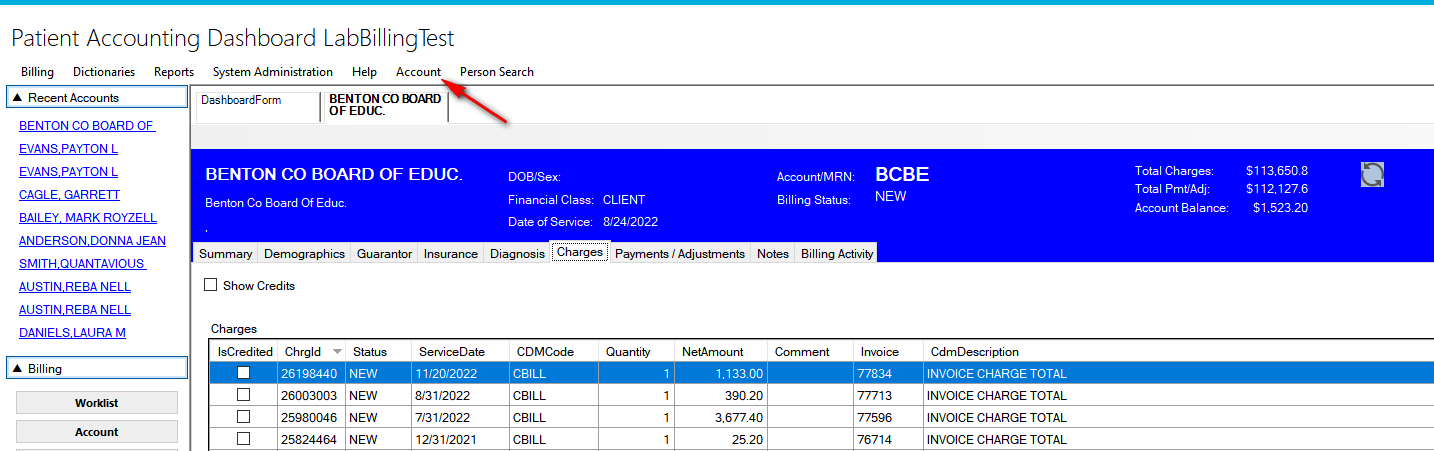

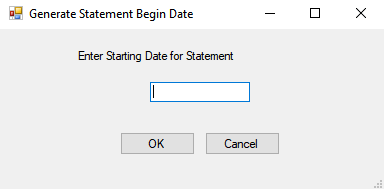
Enter a starting date for the statement. The "T-" date logic can be used, or enter a date in mmddyy format.
Ex. T-120, 010122
Invoice History
Invoice Lookup by Invoice Number
Go to Client Invoicing under the Billing menu.
Click the Invoice History tab. On the filter bar, you can filter by client, invoice number, or invoice creation date.

By default, the date range covers the past 30 days. Change the from or through dates to change the search range. Enter an invoice number in the invoice field. The record with that invoice will be shown. If no record appears, expand the search dates and make sure Filter by Client has “—All Clients—“ selected.
