
Worklists
Overview
The Worklist function allows staff to work through accounts to get them ready for billing.
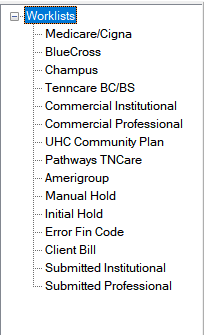
Double-click the specific worklist to show a list of accounts to be worked for that category.
| Worklist | Description |
|---|---|
| Medicare/Cigna | Financial code A accounts |
| BlueCross | Financial code B accounts |
| Champus | Financial code C accounts |
| Tenncare BC/BS | Financial code D accounts |
| Commercial Institutional | Financial code H accounts |
| Commercial Professional | Financial code L accounts |
| UHC Community Plan | |
| Pathways TNCare | |
| Amerigroup | |
| Manual Hold | Accounts placed on manual hold |
| Initial Hold | Accounts during initial waiting period hold. |
| Error Fin Code | Accounts posted with an invalid financial code. |
| Client Bill | Accounts to be billed via client invoice |
| Submitted Institutional | Account institutional claims submitted to clearinghouse |
| Submitted Professional | Account professional claims submitted to clearinghouse |
Using the Worklist
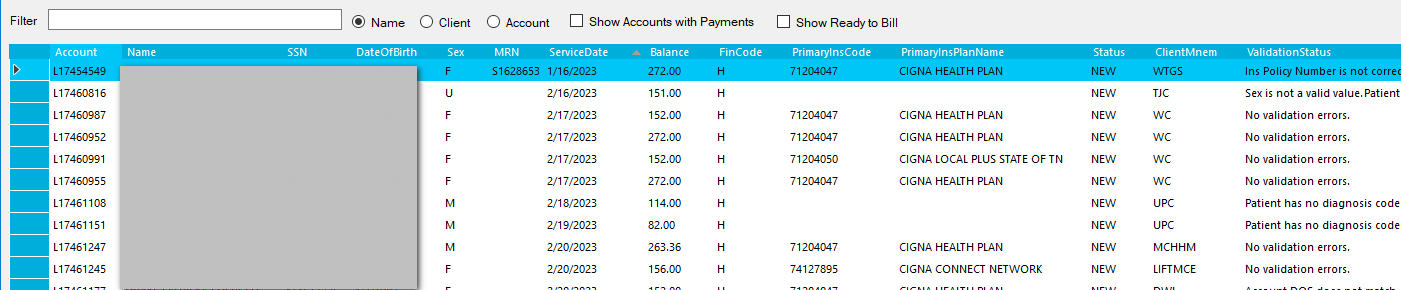
Double-click a worklist to load accounts. The result grid will show the accounts and their current status, including validation status.
Sorting
The worklist can be sorted by any of the column headers in the grid. Click any header to change the sort.
Filtering
The worklist can be filtered by Name, Client, Account, or Insurance. Choose the desired filter, then enter filter text in the "Filter" box.
Show Accounts with Payments - By default, the list does not show accounts that have a payment recorded. To show accounts with payments, check the "Show Accounts with Payments" checkbox.
Show Ready to Bill - When an account is marked Ready to Bill, it is filtered from the worklist so only accounts that need to be worked show. To show accounts that have been marked Ready to Bill, check the "Show Ready to Bill" checkbox.
Working Accounts
Double-click an account in the list to open the account for viewing/editing. See AccountManagement for documentation on working an account.
From the worklist grid, right-click on an account to show functions that can be done without leaving the worklist or opening the account.
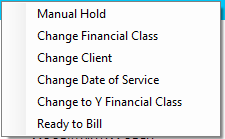
- Manual Hold - this will move the account to the Manual Hold worklist. When in manual hold, the account will not be validated or picked up for claims. Go to the Manual Hold worklist and right-click the account to remove it from manual hold.
- Change Financial Class -
- Change Date of Service -
- Change to Y Financial Class -
- Ready to Bill -